AWS Secrets Manager Integration
An AWS Secrets Manager integration with Cloudhouse Guardian (Guardian) allows you to securely retrieve credentials from your organization’s existing AWS Secrets Manager as an alternative to storing them directly within Guardian. To enable this, add an AWS Secrets Manager integration to your Guardian instance by providing the access key, secret key and Region required to access the stored credentials.
Once you have added an AWS Secrets Manager integration, Guardian can retrieve secrets from the configured vault(s) and make them available for selection when you add Windows, Linux or Network device nodes. These secrets are then used to authenticate access to nodes during scans. This topic describes how to set up an AWS Secrets Manager integration with Guardian.
Note: This feature was introduced in V3.64.0 of the Guardian Web application. This is an optional feature that must be enabled. For more information on how to enable it, contact your Cloudhouse Representative.
Dependencies
To add an AWS Secrets Manager integration, you need the following:
-
An AWS account subscription.
-
Access to one or more AWS Secrets Managers. For more information, see Add an AWS Secrets Manager Integration below.
-
AWS Secrets Manager credentials created in Guardian. For more information, see AWS Secrets Manager Credentials below.
Add an AWS Secrets Manager Integration
When adding an AWS Secrets Manager integration, you must specify add the authentication details and specify the credentials to access the stored credentials, allowing Guardian to retrieve them and use them as authenticators during scans.
To add an AWS Secrets Manager integration to Guardian, complete the following steps:
-
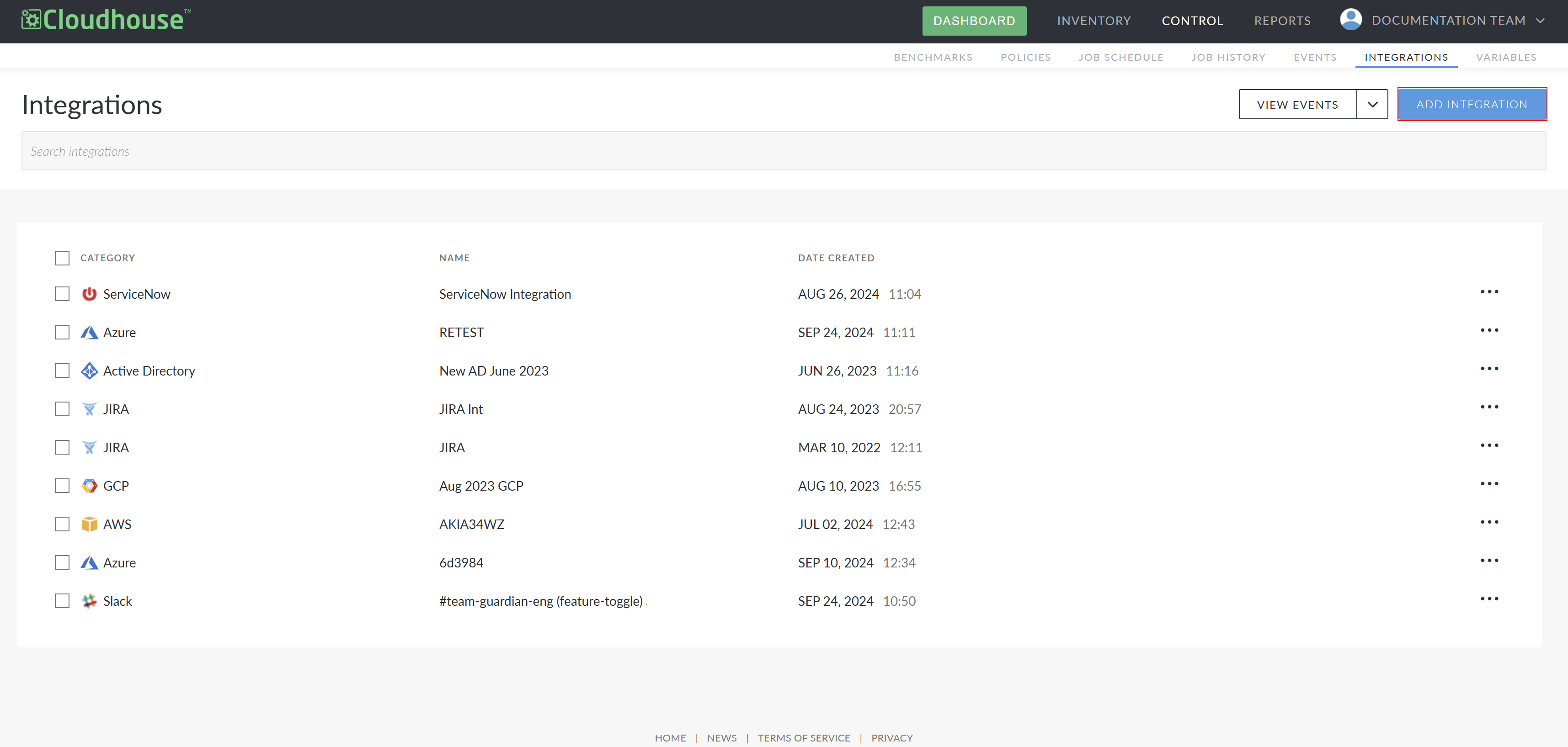
In the Guardian web application, navigate to the Integrations tab (Control > Integrations) and click Add Integration. The Add Integration page is displayed.
-
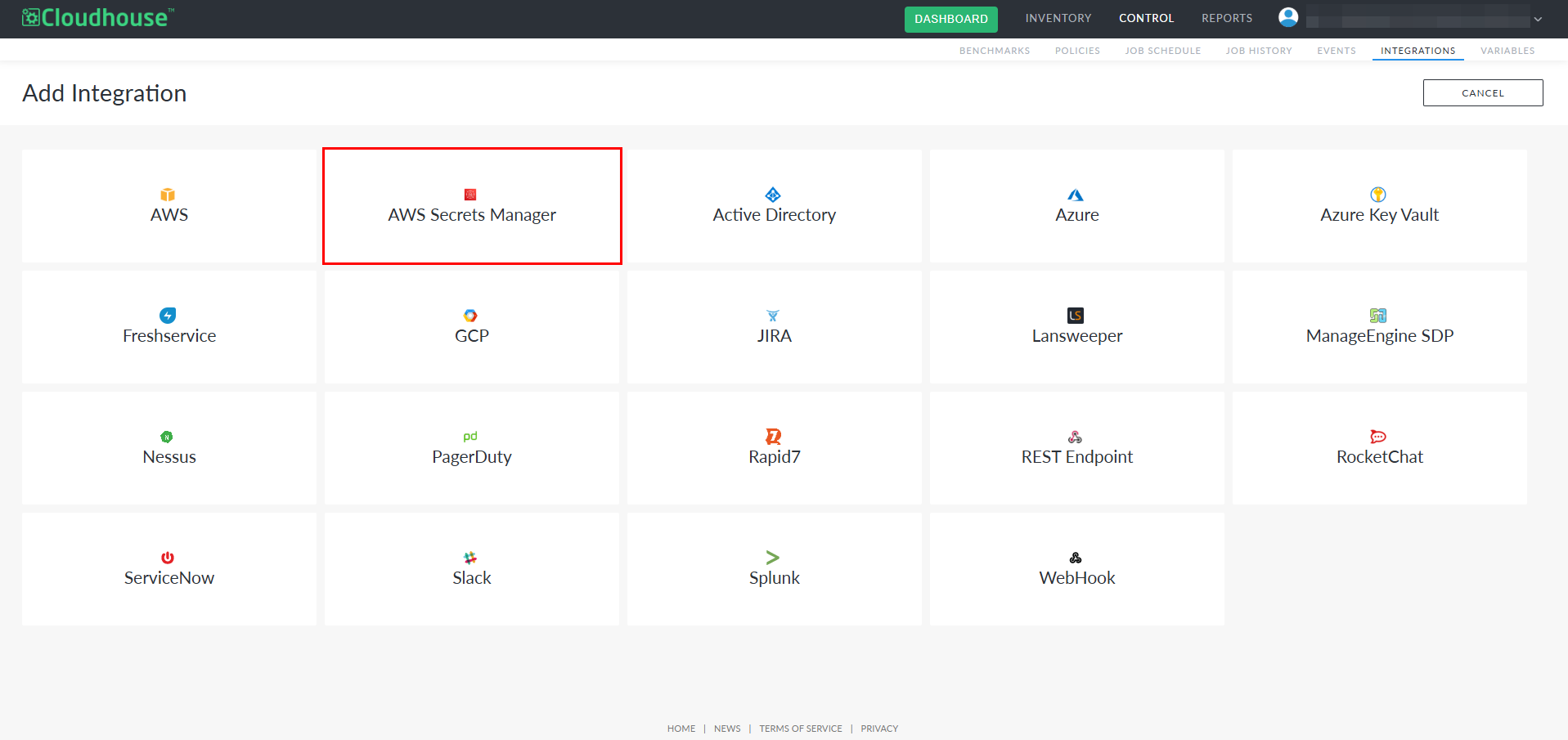
Select AWS Secrets Manager from the list of available integrations.
-
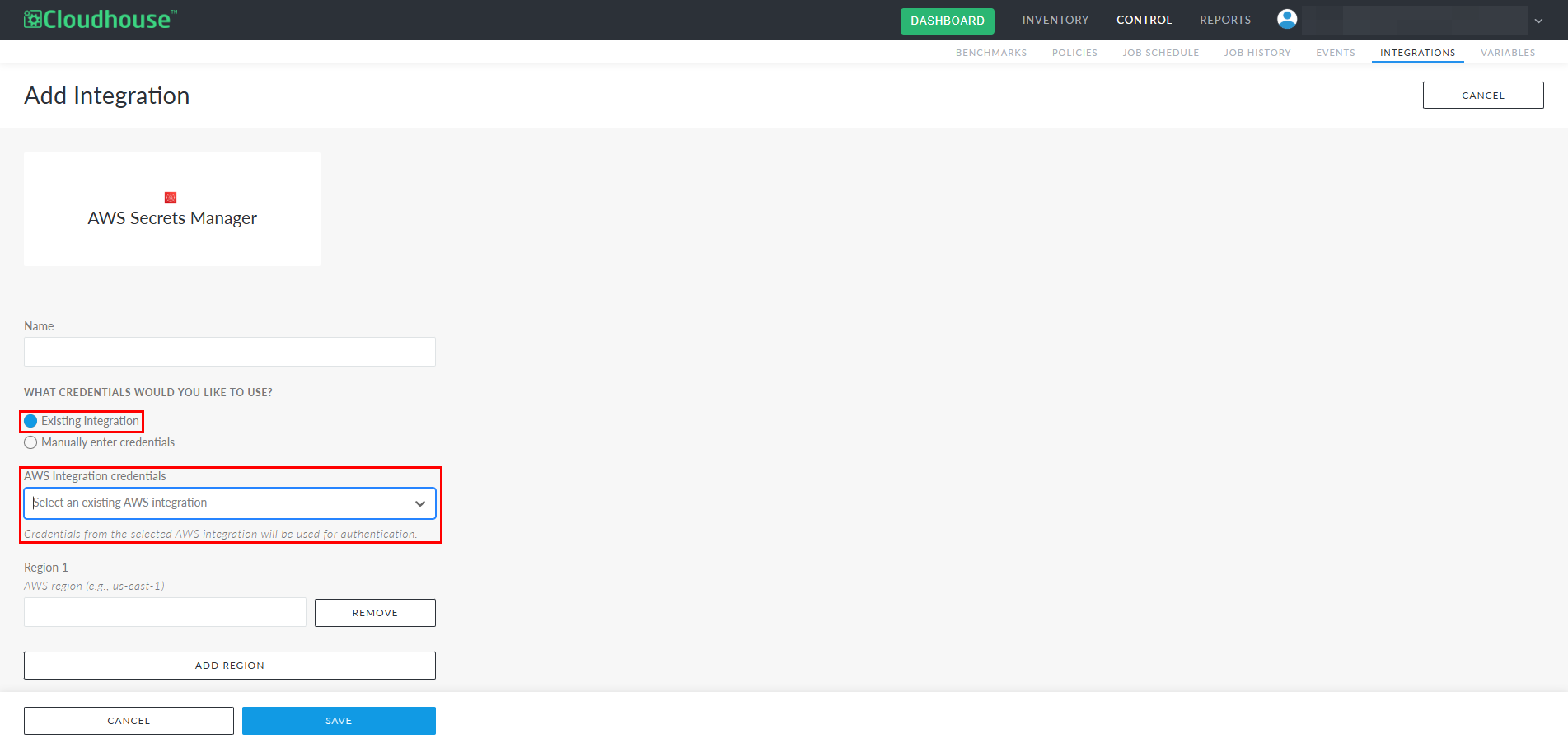
In the Name field, enter the display name for the integration within Guardian. This name is how you will identify the integration among all others configured in your Guardian instance, so ensure it is descriptive.
-
Select the one of the following credentials from the What Credentials Would You Like To Use? radio buttons:
-
Existing integration – Import credentials from an existing Azure integration. If selected, the AWS Integration credentials drop-down list is displayed. For more information, go to Step 5.
-
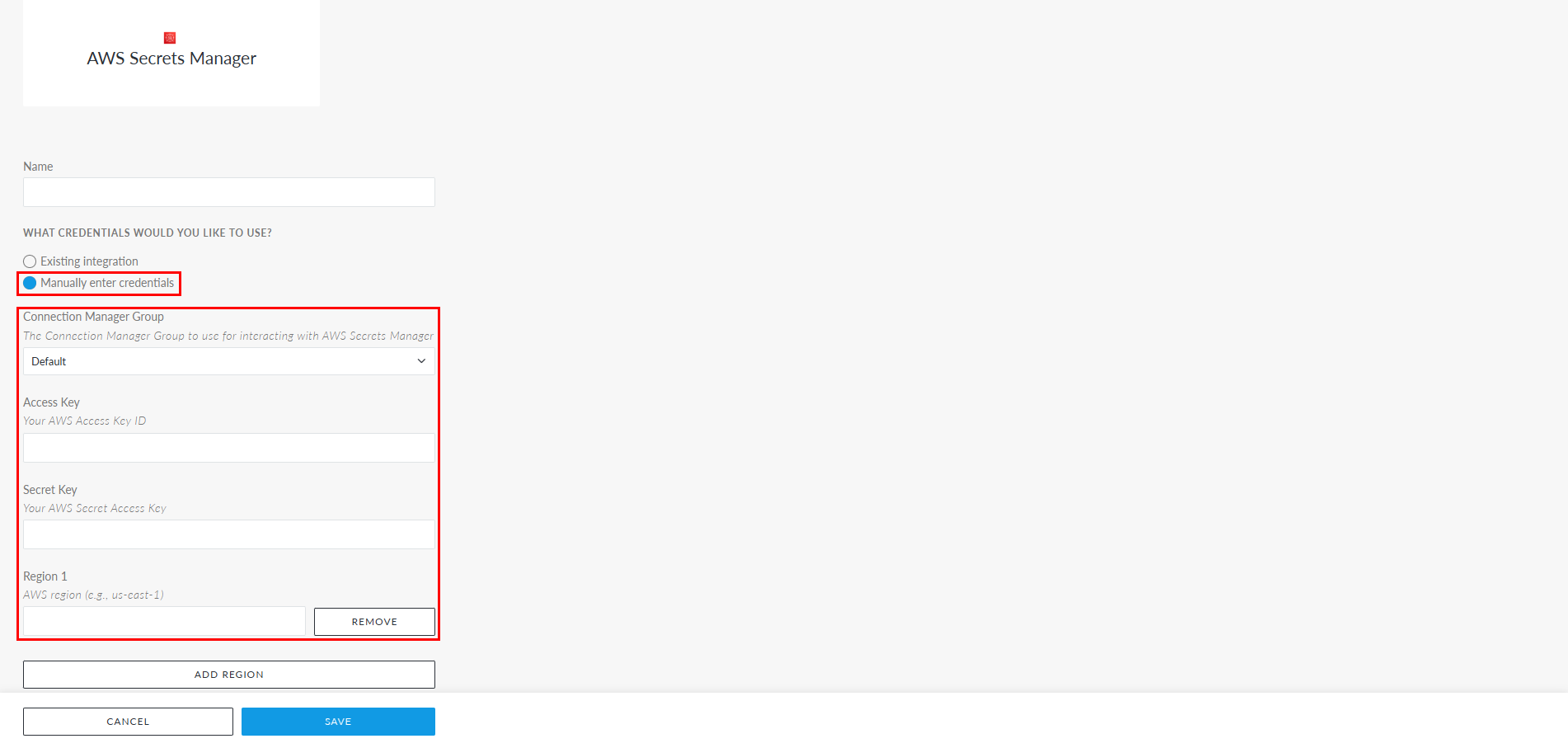
Manually enter credentials – Manually enter AWS Secrets Manager credentials. If selected, the following fields are displayed. For more information, go to Step 6.
-
Connection Manager Group drop-down list
-
Access Key field
-
Secret Key field
-
Region 1 field
-
-
-
If you selected the Existing integration radio button, complete the following options:
Note: If you selected the Manually enter credentials radio button in Step 4, go to Step 6.
Option
Description
AWS Integration credentials drop-down list A list of AWS integrations created in Guardian. Select an existing integration from the list, the credentials associated with the integration will define what credentials are available to use.
Region 1 field The region where the AWS Secrets Manager credentials are stored. You can also complete the following actions:
-
Remove – Remove a region from the integration.
-
Add Region – Add another region if your AWS Secrets Manager credentials exist in more than one AWS region.
Once you have completed these options, go to Step 7.
-
-
If you selected the Manually enter credentials radio button, complete the following options:
Option
Description
Connection Manager Group drop-down list The Connection Manager group that is responsible for scanning and retrieving your AWS node(s). Select a Connection Manager group from the drop-down list.
Access Key field*
The unique IAM account identifier. For more information on how to source this, see AWS Scan User Account.
Secret Key field
The secret access key that is required to sign the request. For more information on how to source this, see AWS Scan User Account.
Region 1 field
The region where the AWS Secrets Manager credentials are stored. You can also complete the following actions:
-
Remove – Remove a region from the integration.
-
Add Region – Add another region if your AWS Secrets Manager credentials exist in more than one AWS region.
-
-
Once you have set the correct values for each of the options displayed (dependent on the radio button you selected in Step 4), click Done to create the AWS Secrets Manager integration.
If successful, a confirmation message is displayed and the AWS Secrets Manager integration is added to the Integrations tab of your Guardian instance. If unsuccessful, an error message is displayed. Use the information displayed in the error message(s) to troubleshoot the values in your AWS Secrets Manager options.
Troubleshooting
If you are experiencing issues with your integration, try the following:
-
Verify that the account credentials supplied for the integration are correct.